How to Fix CapCut No Internet Connection? Complete Guide 2026
Have you ever noticed the 'No Connection' error while editing a video in CapCut? The 'Network Error' or 'No Internet Connection' problem while using CapCut is quite common and frustrating. The good news is you can fix this problem in just a few minutes by following the quick, simple steps in this guide. You can easily fix the CapCut "No Internet Connection" issue on all devices, including mobile and desktop. So, let's dive into the details!
CapCut is unable to communicate with its servers. This can happen even if your internet seems fine — due to weak signals, server downtime, or VPN interference.
Weak Wi-Fi, server downtime, VPN/proxy issues, outdated app version, corrupted cache, or incorrect DNS settings.
Update CapCut, clear cache, check internet speed, disable VPN, and restart the app. Full 8-step guide below.
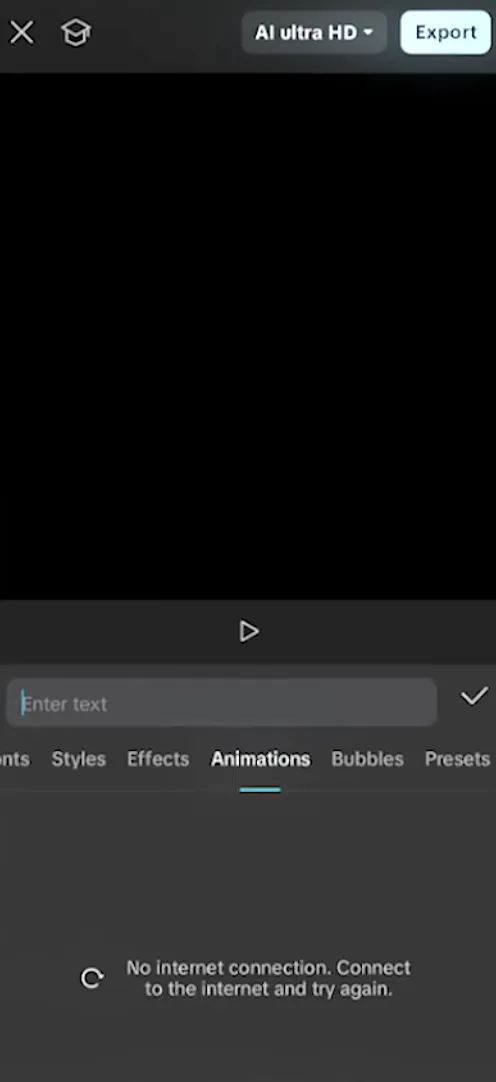
CapCut "No internet connection. Connect to the internet and try again." error
What Does 'CapCut No Internet Connection' Mean?
The Network Error or CapCut No Internet Connection problem means CapCut is unable to communicate with its servers. This error can also occur if your internet seems to be working fine, but CapCut may fail to load templates or export settings due to an improper server connection. Weak signals, server downtime, VPN interference, and outdated app versions can lead to this issue.
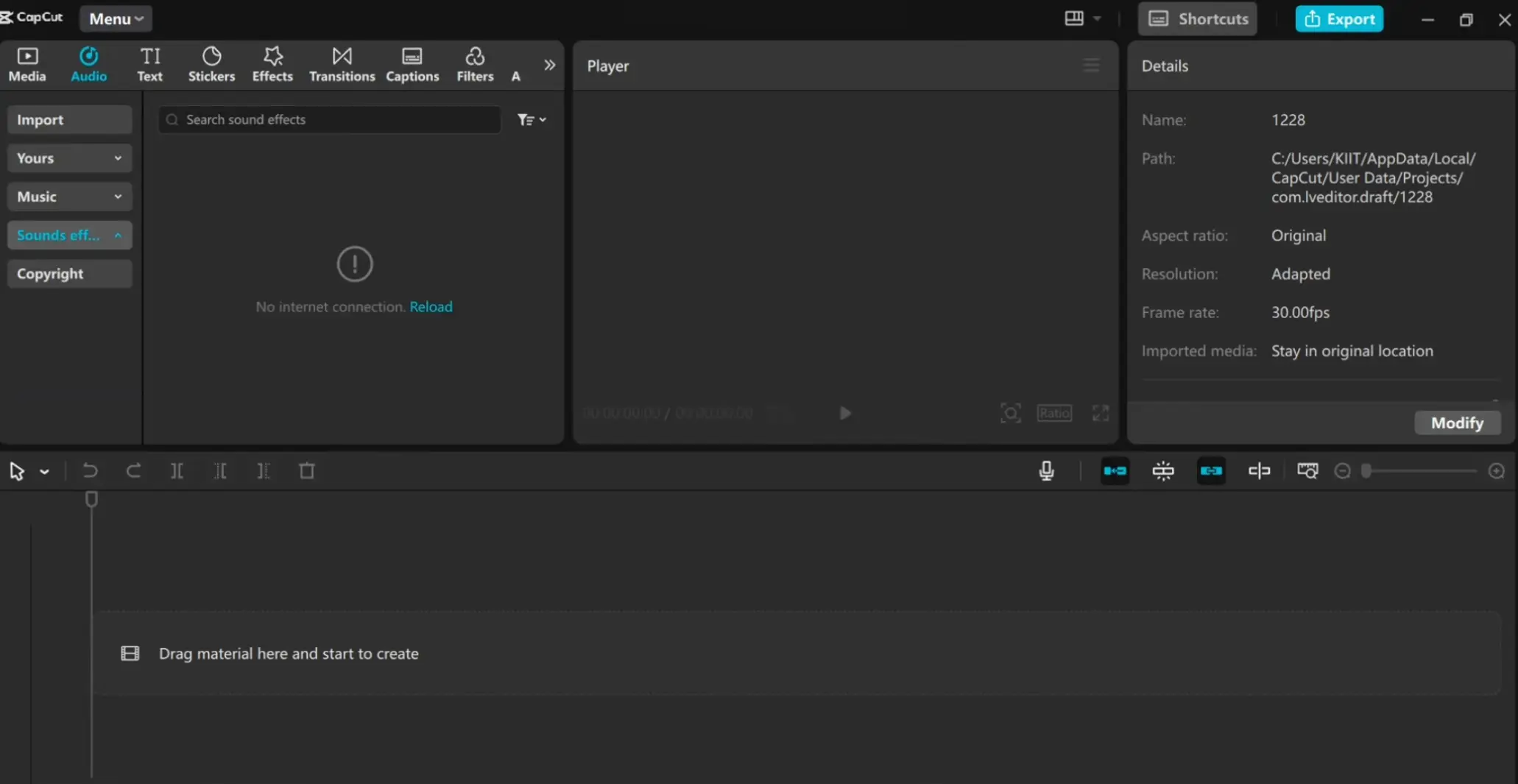
CapCut Desktop — "No internet connection. Reload" error while browsing sound effects
Common Causes of the CapCut Network Error
Before exploring the solutions, you must understand the reasons causing the network error. Some of the possible causes are mentioned below:
Weak or Unstable Internet Connection
A weak or unstable internet is one of the leading causes of the Network Error in CapCut. Poor Wi-Fi or inconsistent 4G/5G signals can disrupt the app's server requests, leading to connection failures.
Server Issues
Sometimes, CapCut's server is the cause of the 'No Internet Connection' error. Temporary server downtime or maintenance on CapCut's servers can trigger the error even if your internet is working properly.
VPN-Related Problems
Since 2020, many countries have banned access to CapCut due to security concerns, prompting millions of users worldwide to use VPNs to access the app. However, these VPNs can sometimes slow internet speeds or cause unstable connections, leading to network errors.
Antivirus
Antivirus or security software may block certain network requests made by CapCut. This may prevent the app from connecting to its servers properly, leading to a network error.
Outdated CapCut Version
Using an old version of CapCut can also cause connectivity issues. These outdated versions may contain bugs and may not be fully compatible with the latest server updates, leading to network-related errors.
Corrupted Cache
Corrupted cache files can interfere with the app's normal functioning. Therefore, clearing the cache can help resolve the network errors.
Incorrect DNS Configuration
Misconfigured DNS settings on your device or router may block server requests, preventing CapCut from establishing a stable connection to its servers.
How to Fix CapCut No Internet Connection? 8 Easy Ways to Check
If you're facing a connection error in CapCut, try the following solutions one by one:
Update CapCut
Go to the Google Play Store or Apple App Store and check whether you're using the latest version of CapCut. If an update is available, install it. Updating the app can fix bugs and compatibility issues that may be causing the network error.
Clear Cache
Go to Settings on your Android phone, tap Apps, then CapCut. Hit the Storage tab, then clear the cache. On iPhone, uninstalling and reinstalling the app is the best way to refresh temporary files and remove corrupted data.
Check Your Internet
Test your internet speed by browsing a website or using a speed test tool. If your speed is below 5 Mbps or the connection is unstable, switch to mobile data or restart your router.
Disable Browser Extensions (For Web)
If you're using CapCut on a browser, certain ad blockers or scripts may interfere with loading. Open CapCut in Incognito Mode. If it works there, disable extensions one at a time to identify the issue.
Turn Off VPN or Proxy
Disable any active VPN or proxy service and test the connection again. Some VPNs may slow down your internet or block certain server requests.
Adjust Hardware Acceleration Settings (For Desktop)
If you're using Windows, macOS, or a desktop app, go to Settings, click Performance in the top-right corner, turn off hardware-accelerated encoding, save the changes, and restart the app.
Free Up System Resources
Close unused applications, multiple browser tabs, or background programs to free disk space and improve CapCut performance.
Restart CapCut and Your Device
Completely close the app and restart your phone, tablet, or computer. A simple reboot can clear temporary network or system glitches.
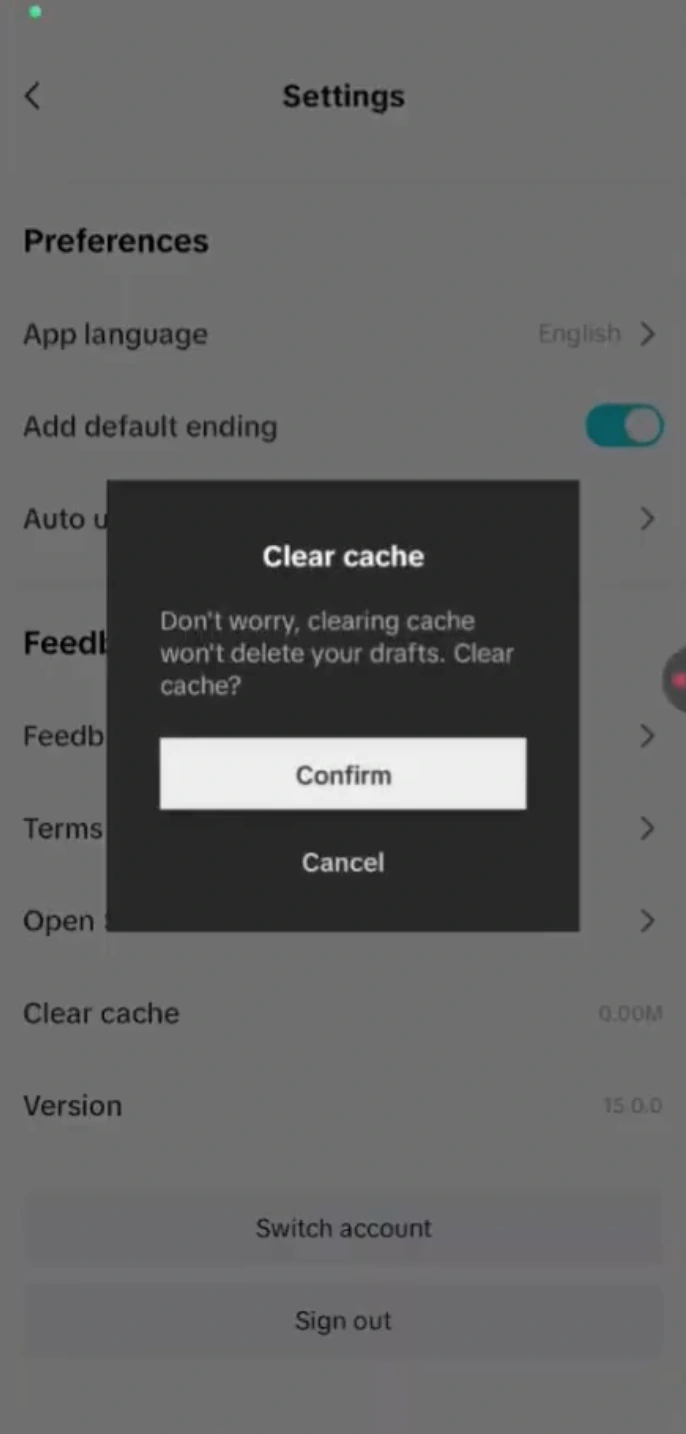
CapCut Settings — Clear cache confirmation dialog on mobile
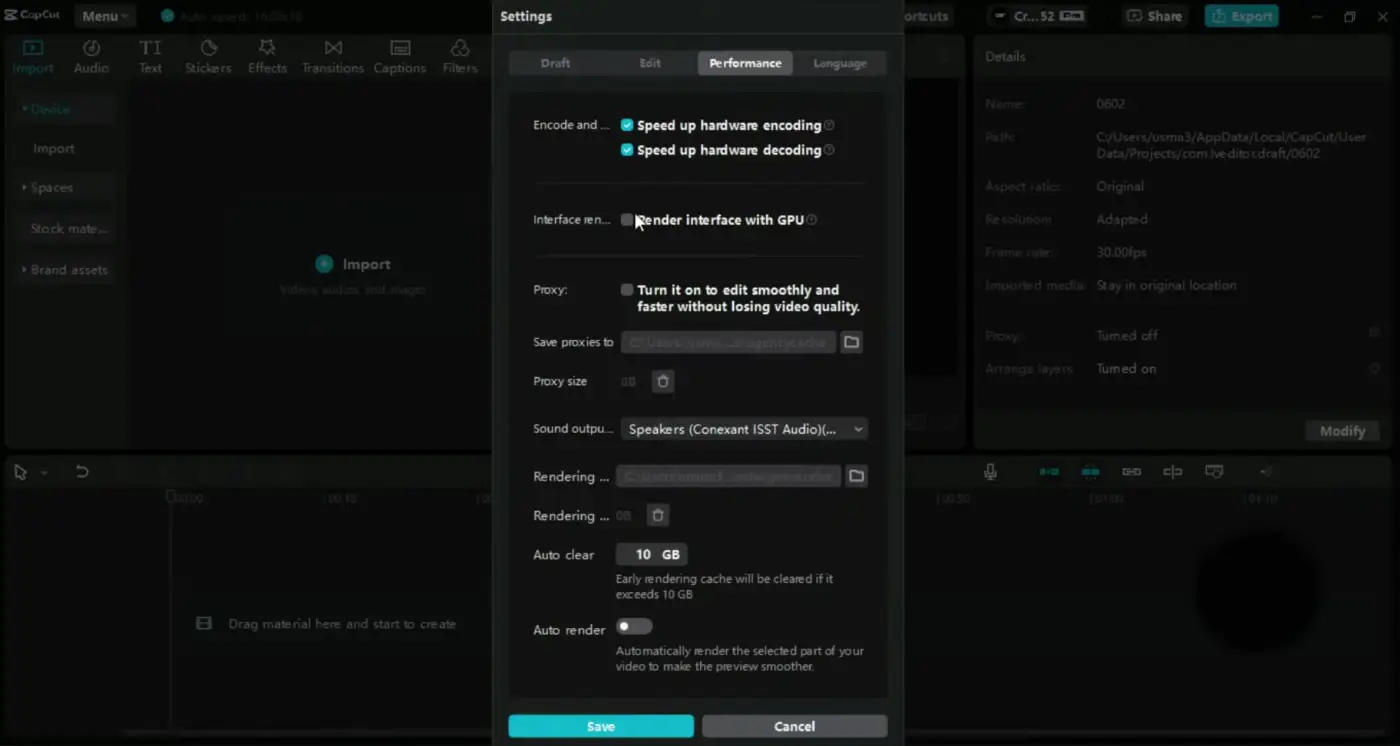
CapCut Desktop — Settings > Performance > Hardware Acceleration encoding/decoding options
Contact CapCut Support
If none of the above tricks resolves the network error, you can contact the CapCut team for guidance. For this, go to Settings, click on Feedback, Report a Problem, and add the following details in the description:
- Your device model
- Operating System and CapCut Version
- Screenshot of the issue you're facing
- A short description of the steps you have taken already.
Here's a ready-to-use sample you can paste directly:
Conclusion
The CapCut "No Internet Connection" problem is common and frustrating, but it can be easily resolved. Simple ways to solve this network error include checking your internet connection, updating the app, and clearing the cache. However, you may need to reinstall CapCut at times.
Frequently Asked Questions
-
Well, it is quite common to see a network error in CapCut even with a strong internet connection. It might be due to VPN, firewalls, or incorrect DNS settings.
-
Updating the app and restarting your phone can usually resolve the network issue. However, if it doesn't, uninstall and reinstall CapCut to clear the cache, which will resolve the network problem.
-
Yes, it might delete your projects if they are not backed up to the cloud. Therefore, it is recommended to always export and save projects before clearing data or reinstalling CapCut.
-
Keep CapCut updated, clear cache regularly, use a reliable wifi connection, and avoid VPNs to prevent network issues in the future.